

USB 4.0
What is USB 4.0
USB 4.0 is a USB system defined in the USB 4 standard, which was issued in version 1.0 by the USB Implementers Forum on August 29, 2019. In contrast to previous USB protocol standards, USB 4 needs USB-C ports and USB PD capability for power supply. In contrast to USB 3.2, it supports DisplayPort and PCI Express tunneling.
Why Choose Us?
Rich Experience
Established in 2009, Helge Electronics Co., Ltd. is a leading manufacturer based in Shenzhen, China, renowned for its production of data cables and chargers. With over 180 employees, our company has garnered extensive expertise in the industry.
Complete Qualifications
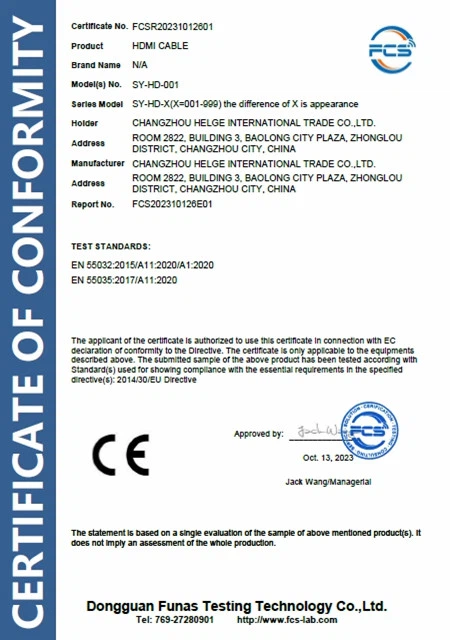
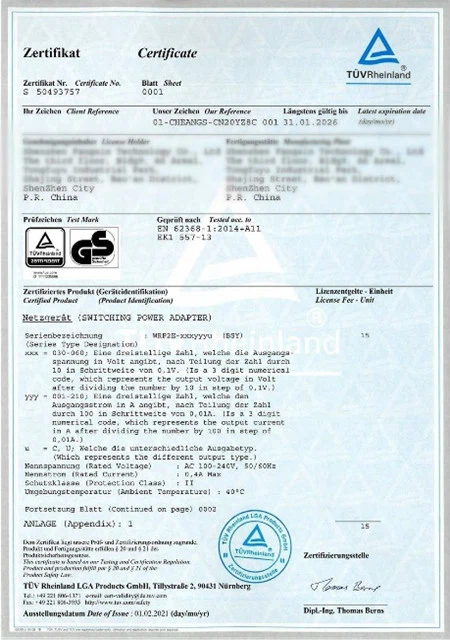
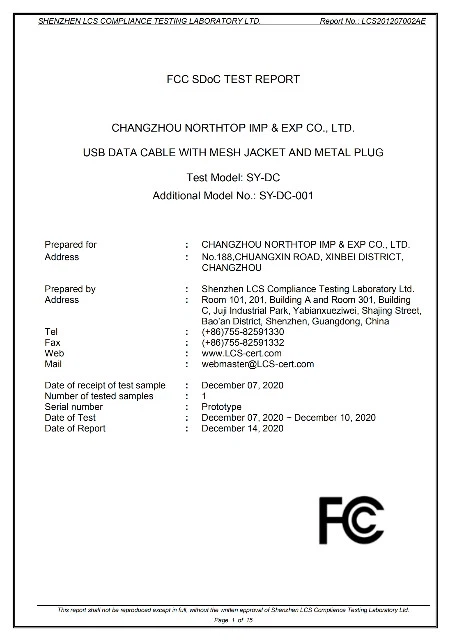
Boasting a remarkable track record of 15 years in exports, Helge Electronics holds a comprehensive array of certifications, including UL/CUL, TUV/GS, PSE, KC, KCC, CB, FCC, CCC, UKCA, ERP, CEC/CE, EMC, and SMETA. These certifications underscore our commitment to unparalleled quality and adherence to international standards.
Professional Technical Team
At the core of our operations is a dynamic research and development team dedicated to driving innovation and product enhancement. Their relentless pursuit of excellence ensures that we stay ahead of market trends and technological advancements, delivering cutting-edge solutions to our customers.
Quality Assurance
Our stringent quality control system guarantees that every product undergoes rigorous inspection, from raw material sourcing to final production, maintaining the highest standards of quality and reliability.

Benefits of USB 4.0
USB 4 specifications feature many improvements over the USB 3.x cables that might be in your bag. For example, USB 4 is faster, more functional, and will have improved compatibility with Thunderbolt 4.
1.Fast Speed
The current max transfer speed of the USB 3.2 is 10 Gbps, which seems fast. However, Thunderbolt 3 featured 40 Gbps of data transfer. USB4 features both 20 Gbps and 40 Gbps.
Why would you want to have two transfer speed options? Well, most people don't really need to transfer data at a high speed. After all, most of our work is done on the cloud nowadays. However, if you have large files like videos or software you'll want to make sure you have the 40 Gbps version.
2.DisplayPort 2.0
In addition to fast data transfer rates, USB 4 allows you to use the USB-C connection to connect a display to a computer or other source. USB 4 uses DisplayPort 2.0 in order to provide high-quality video.
DisplayPort alt-mode will allow the Type-C connection to transmit video in 8K HDR. This opens up a world of opportunity for TV alternatives like Roku, Amazon Fire, and projectors. While HDMI cables and DisplayPort cables might not be going anywhere right away, eventually they might be a thing of the past.
You will be able to connect two screens with two separate USB/TB cables. This is a process that is called daisy-chaining. If the displays have the correct ports, you could be able to have two 4K displays through this kind of connection.
3.Compatibility
The new USB specifications will be fully compatible with Thunderbolt 4. Currently, Thunderbolt 3 is compatible with USB 3.x, for the most part. However, even when this compatibility functions as it is supposed to transfer rates are limited by USB's slower transfer speeds.
What Else Can USB 4.0 Do?
What's the Difference Between USB 4.0 and Thunderbolt 4?
Over USB-C or thunderbolt, USB 4 offers significant advancements, completely evolving the characteristics of regular USB. While USB 3.0, 3.1, and even USB 3.2 connections allowed for 5Gbps transfer speeds on more cheap devices, USB 4 will need a minimum of 10Gbps, and most devices will support the USB-IF-approved USB 4 20Gbps data rate.
1. Similarities:
Both utilize the USB-C connector: This sleek, reversible design offers convenience and compatibility with a wide range of devices.
2. Support for high-resolution displays:
Both can connect to high-resolution displays, including 4K and even 8K in some cases.
Data transfer speeds: Both offer impressive data transfer speeds, with the maximum theoretical speed being 40 Gbps.
3. Differences:
Minimum requirements: This is a crucial differentiator. While Thunderbolt 4 mandates all its implementations to support the full 40 Gbps, USB4 allows for a minimum of 20 Gbps. This means some USB4 devices may offer slower data transfer speeds compared to Thunderbolt 4.
4. Display support:
While both can handle high-resolution displays, Thunderbolt 4 offers broader support. It can drive two 4K displays at 60 Hz or one 8K display at 30 Hz, whereas USB4 typically supports only one 4K display.
5. Additional functionalities:
Thunderbolt 4 integrates PCIe support, allowing for the connection of external graphics cards and other high-performance peripherals. USB4, on the other hand, may or may not support this functionality depending on the implementation.
6. Certification and Cost:
Thunderbolt 4 requires Intel certification, which adds to the cost compared to USB4, which doesn't have such a requirement.

The USB 4 and USB-C look similar, but the names refer to completely different technologies.
• Type of cable vs. specific version
A USB-C is a type of cable, while USB 4.0 is a specific version of the USB cable technology.
USB 4 has nothing to do with the shape. It's referring to the specific tech that's inside a USB-C. That's right – your cable could have both USB-C and USB 4.
If that's not confusing enough, the design alone won't tell you if it's USB 3 or USB 4. There are actually some USB 3 connectors that still use the USB-A design, although you can find USB 3 with the more modern USB-C design, too.
• Compatibility
There is some difference in compatibility. The USB-C connector won't work with older USB technology since the end is a different shape. However, the USB 4 technology can be compatible with older tech, as long as it fits that "c-shaped" port used for USB 4.0 devices. If it doesn't fit the shape (not a USB-C), you can use a special converter dongle.
The Core Specs of USB 4.0
Though some USB Type-C devices support USB Power Delivery (USB PD), it is not required for this specific standard. However, all USB4 devices and hosts are required to comply with this USB PD. Due to this standard, higher wattages and better power management are available. In theory, USB PD can provide up to 100 watts, however charging devices do not have to support that wattage. Essentially this means that a USB4 port will provide power, however it may not be the same wattage as the host machine.
While you can use USB-C for "fast charging," it's possible to plug in a device and receive a "charging slowly" notification. USB4, however, has to comply with the USB PD specs, so every USB4 cord will request higher currents and voltages from chargers. You can also charge more devices from a single port.
Recommended cable lengths are par for the course when it comes to USB and a USB4 cable is no different. Official USB4 cables are currently maximized at .8 meters (~2.6 ft). Longer cables are available on the market, but don't meet the USB4 standard. The best way to get a longer USB4 cord is to connect several together with an active USB adapter, which adds a power port to the next step, boosting data. These are generally powered with a separate power adapter, or they may take up a port on your computer.
USB4 supports older USB devices, as long as they fit into the port. If they don't, consider buying a converter. You'll just need to know if your older USB tech uses a USB-A or USB-C design.
USB4 has data transfer speeds of up to 40 Gbps, almost twice the speed of USB 3.0, allowing you to transfer high-capacity files in seconds. Where things like heavy design-laden graphics files, 4K movies, effects and graphics used to take long stretches of time to transfer, now they'll be quite a bit faster. This technology also ensures that connection to multiple monitors and external displays is supported at high resolutions.
USB 4.0 Data Transfer Modes
USB 4.0 doesn't offer its own data transfer mechanisms unlike USB 3.x, instead primarily tunneling existing protocols such as USB 3.2 and DisplayPort, with optional PCIe support. It includes a native Host-to-Host protocol used for IP Networking between two hosts. When PCIe tunnelling isn't supported, maximum non-display bandwidth drops to USB 3.2's limit of 20 Gbit/s; a 10 Gbit/s rate is the mandatory minimum.
· USB 4.0 specifies tunnelling
· USB 3.2 ("Enhanced Super speed") Tunnelling
· DisplayPort 1.4a-based Tunnelling
· PCI Express (PCIe)-based Tunnelling
· USB4 also supports DisplayPort Alternate Mode. This means DP can be sent via USB4 tunnelling or DP Alternate Mode.
· DisplayPort Alt Mode 2.0: USB 4 supports DisplayPort 2.0 over its alternative mode. DisplayPort 2.0 can support 8K resolution at 60 Hz with HDR10 colour and can use up to 80 Gbit/s which is same amount available to USB data, but just unidirectional.
· Legacy USB (1–2) is always supported using the dedicated wires in the USB-C connector.

Yes, if you typically deal with large file sizes often needs fast transmission rates, so they don't get bogged down by waiting times when transferring digital material like music files or videos should consider getting products equipped with USB 4 connectivity options are available today on marketplaces across the web.
Additionally, if you stream video content regularly you could also benefit from having access to this technology since it provides higher fidelity picture quality while streaming without interruption due lagging hiccups during transmission intervals.
Does My Pc Support USB 4.0?
Since Thunderbolt transitioned to USB-C, a way of knowing whether your laptop supports the technology is to check your USB-C ports on your laptop. Most times than not, a Thunderbolt 3 port will be distinguished by a lightning bolt icon next to the USB-C port. That's not to say that all laptops will use the Thunderbolt icon. Many don't. If your laptop doesn't have the Thunderbolt icon but you'd like to keep checking, there's another way to find out.
The device manager is another place to go to check whether your laptop supports thunderbolt 3 or USB4. Unless Thunderbolt 3 has been disabled in BIOS, you can always see the hardware on your motherboard via Device Manager. There are two easy ways to access the Device Manager; one is to enter Windows Key + X and then tapping on Device Manager. You can also just type Device Manager in the search box.If Thunderbolt 3 or USB4 is indeed supported, you should be able to see the device under system devices. If you don't see it, it's either not there at all, or has been disabled from BIOS for some reason. Depending on the brand of PC you have, pressing the functions keys (between F2 and F12), the ESC or DEL keys at start up will take you to BIOS.
Our Factory
Established in 2009, Helge Electronics Co., Ltd. is a leading manufacturer based in Shenzhen, China, renowned for its production of data cables and chargers. With over 180 employees, our company has garnered extensive expertise in the industry.
Boasting a remarkable track record of 15 years in exports, Helge Electronics holds a comprehensive array of certifications, including UL/CUL, TUV/GS, PSE, KC, KCC, CB, FCC, CCC, UKCA, ERP, CEC/CE, EMC, and SMETA. These certifications underscore our commitment to unparalleled quality and adherence to international standards.
Our Certificate




Ultimate FAQ Guide to USB 4.0
We're well-known as one of the leading usb 4.0 manufacturers and suppliers in China. Our factory offers high quality usb 4.0 made in China with competitive price. Welcome to place an order.
USB Cables 4 0, usb 4 0